
Setting up the org
Status: ⚠️ Written from the program's own install requirements and walked in part against real managed installs — not verified end to end on one fresh subscriber org in one pass — see What has not been verified.
Everything that has to be true before Territory Mapper works, in the order to do it.
This page exists because three of the steps below fail silently when they are missed — no error, no warning, nothing in a log. That is why it is blunt about which steps have no error message, and why the verification section at the foot is worth running even when everything looks fine.
The order
| # | Step | If you skip it |
|---|---|---|
| — | Enable Enterprise Territory Management | Nothing installs correctly — the objects Territory Mapper decorates do not exist |
| — | Install the package | — |
| 1 | Enable geocoding clean rules | 🔴 Nothing is ever assigned. No error. |
| 2 | Configure the GIS callout credential | 🔴 Nothing is ever assigned. No error, and no failed-callout entry either |
| 3 | Grant users access to the credential | 🔴 Same symptom as 2, and it is a separate step people miss |
| 4 | Assign permission sets | Users see no app, or see it and can change nothing |
| 5 | Allow the app's origin in CORS | 🔴 The map loads and nothing can be saved. Every attempt to create or edit a territory fails with "Failed to fetch" |
| 6 | Define your territory roles | The role selector is empty and users cannot be added to territories at all — the Assign users button never enables |
Steps 1, 2 and 3 all produce the same symptom — silence — and they have different fixes. That is what the verification section at the foot of this page is for.
1. Enable geocoding clean rules
This has its own page, and it is the one to do carefully: Geocoding clean rules.
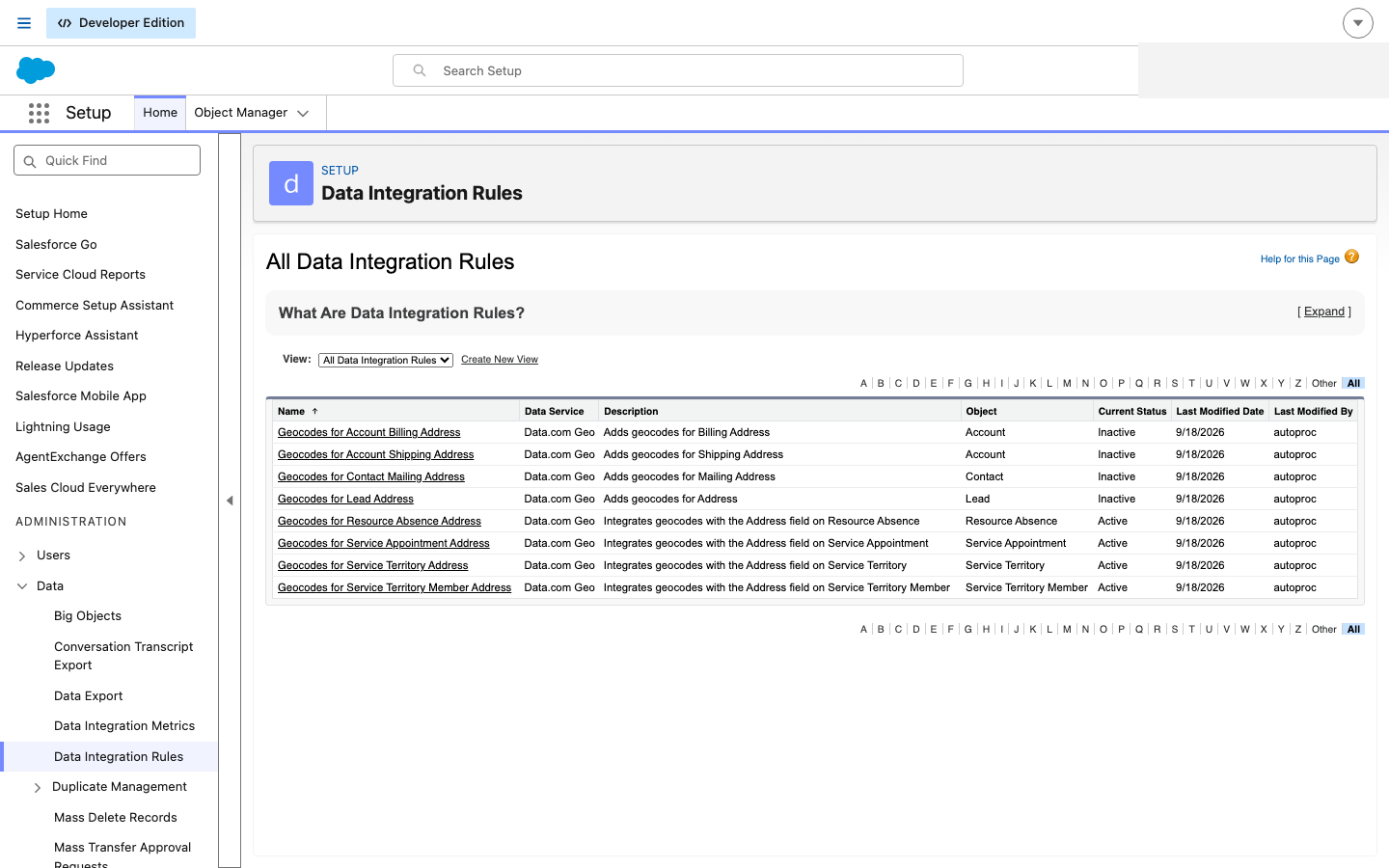
The geocoding rules. A record with no latitude and longitude cannot be placed on a map, so nothing is assigned to it — this page is the first place to look when assignment produces nothing at all.
In short: Setup → Data Integration Rules → activate the billing address rule for each object you assign, then process existing records.
2. Configure the GIS callout credential
Territory Mapper resolves a point against boundaries by calling out to the MapKraken GIS service. The package ships the address, and cannot ship the credential — so a fresh install starts with the credential unset. Setting it is this step.
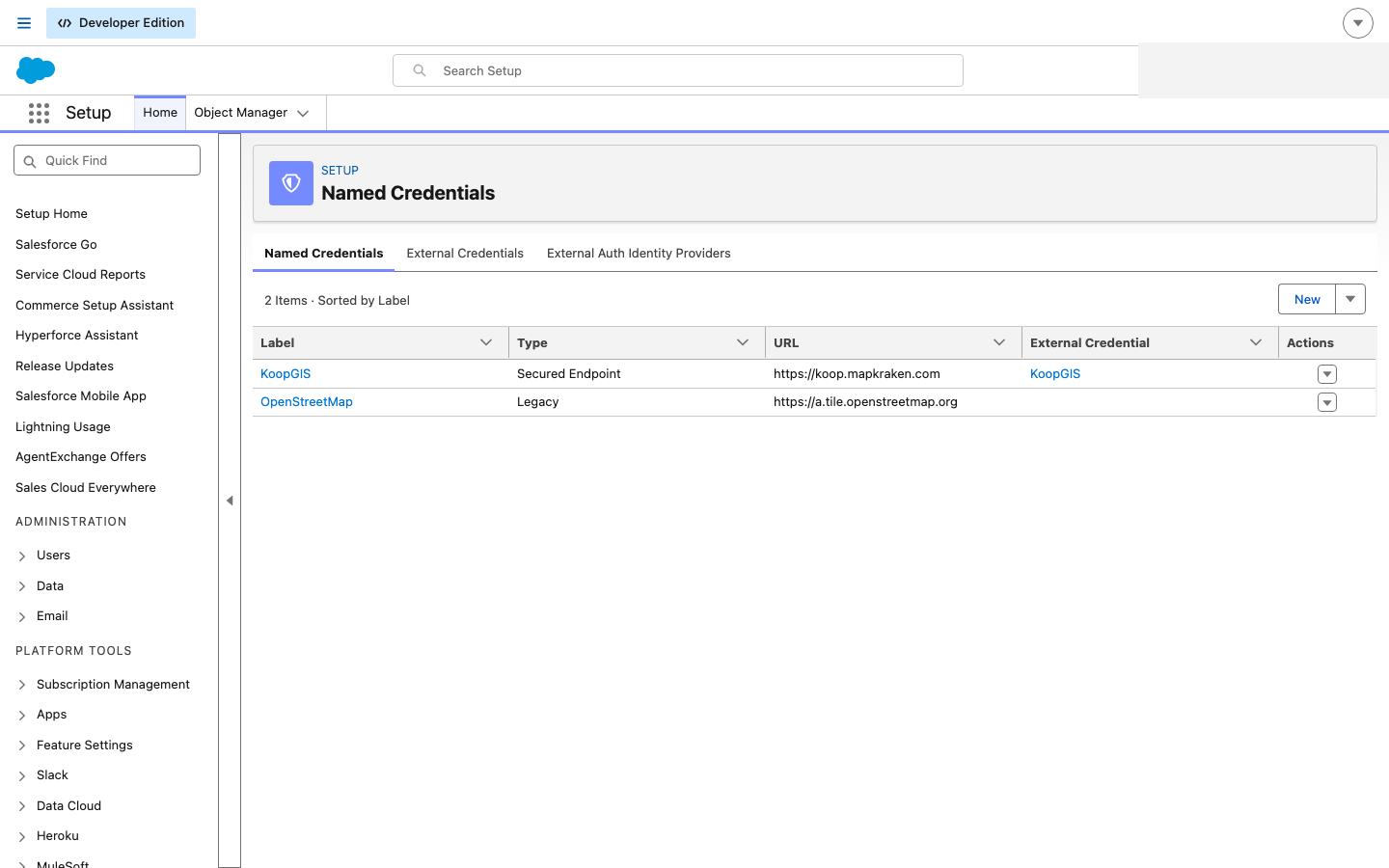
The callout credential. This is how your org reaches the mapping service; without it the map opens and draws nothing.
Setup → Security → Named Credentials. ⚠️ There are two entries called KoopGIS there, on two different tabs, and they are not the same record. The value you set is on the External Credentials tab. Going to the Named Credentials tab is the most common way this step fails.
External Credentials tab → KoopGIS → Custom Headers → Authorization → Edit. It ships as REPLACE_WITH_BEARER_TOKEN. Set it to the value MapKraken Labs supplies.
⚠️ The Authorization header does not exist on the Named Credential at all — look for it there and you will find an empty custom-header list and nothing to set. An empty list on that tab is not a sign that the work is done.
⚠️ It is not in the Edit Principal dialog either. That dialog's Authentication Parameters list is empty, and correctly so: this header belongs to the credential, not to the principal.
🔴 Include the literal Bearer prefix, with the space, before the token. This credential uses the Custom protocol, which does not add that prefix for you the way Basic and OAuth do. Without it the service answers "Missing bearer token" and the records return as NOT_CONFIGURED — the same category you started with, so a missing prefix looks exactly like a step you never did.
If the address looks wrong, stop and tell us
On the Named Credentials tab, KoopGIS → Edit → URL should already name a real MapKraken host. You are not expected to set it — the package ships it.
🔴 If it instead reads https://__KOOP_HOST__, that is a packaging defect, not a setup step. Nothing you can configure will make that address resolve. Contact MapKraken Labs and quote this paragraph; you need a corrected package version, and no amount of credential configuration will work until you have one.
🔴 A missing credential fails before the request leaves your org, which means it does not appear in callout logs and does not look like a network problem. It looks like nothing happening.
Territory Mapper does report it: those records land in the exception queue as NOT_CONFIGURED, and that category exists because this is the state every new installation starts in. A queue full of NOT_CONFIGURED is the expected first sight of a new install, not a fault.
3. Grant users access to the credential
A separate step from 2, and the one most often missed.
Setting the credential is not the same as letting a user use it. On the external credential, grant access to the principal your users authenticate through — normally by assigning the relevant permission set.
Missed, this fails exactly like step 2, from the user's point of view: silence.
4. Assign permission sets
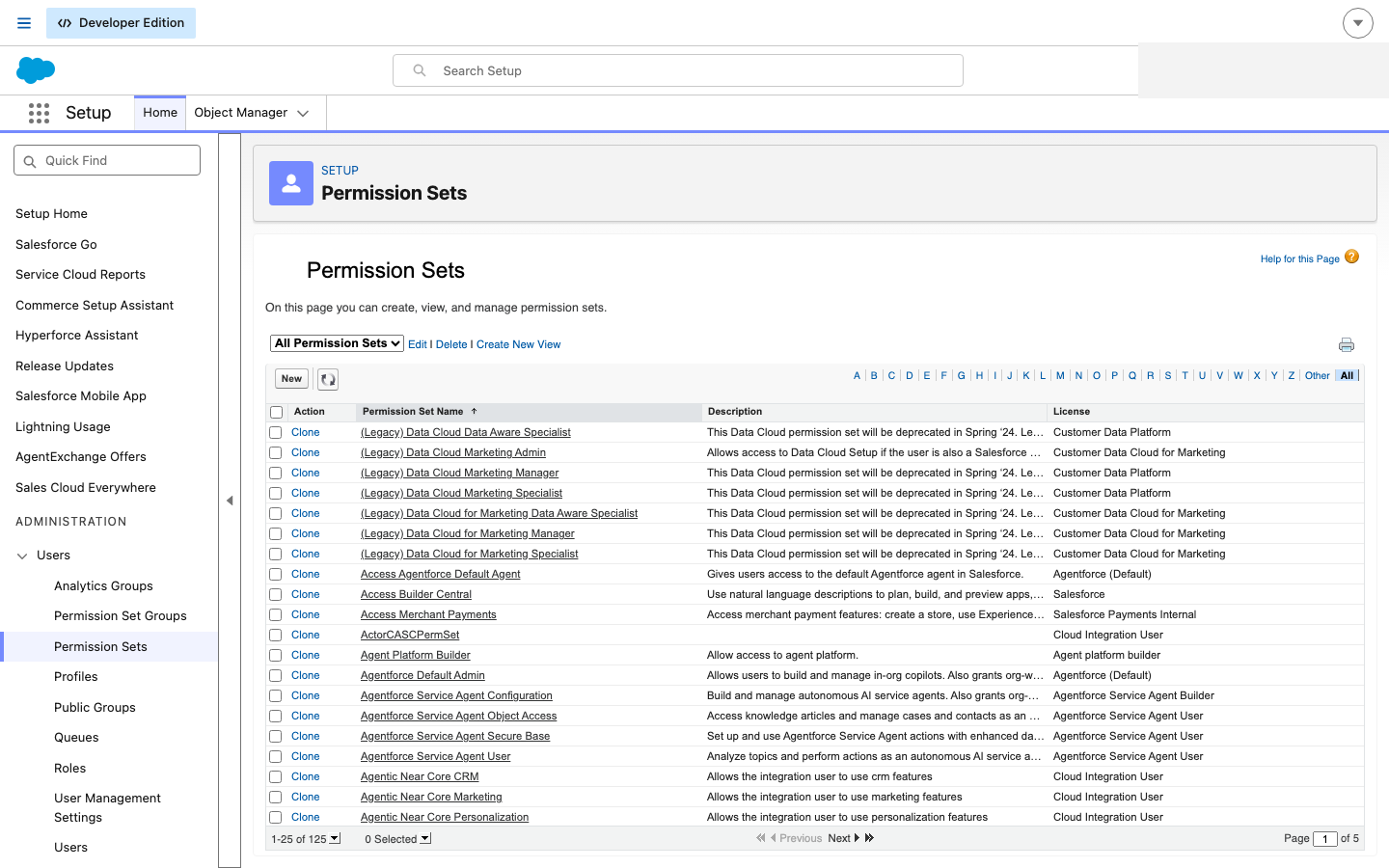
The three permission sets the package installs. Nobody can open Territory Mapper until they hold one of them, and installing the package assigns none of them to anybody.
| Permission set | Label in Setup | Gives |
|---|---|---|
| Territory Mapper User | Territory Mapper - Viewer (read only) | The app, the map, the territory tree, and read access to the exception queue |
| Territory Manager | Territory Mapper - Administrator | All of the above, plus editing boundaries, acting on exceptions, and adding users to territories |
| TM Territory Fields | Territory Mapper - Administrator (with Account fields) | The administrator set, plus the Account fields assignment writes to |
Editing a boundary, resolving an exception and assigning users all require Territory Manager. A user with only the User permission set sees the queue and cannot clear it, which is intended — but it looks like a bug if nobody said so. A viewer no longer sees the buttons for actions they cannot take.
⚠️ Known limitation — adding a user to a territory needs the Administrator set. There is no middle tier that would let, say, a sales-operations person manage territory membership without also being able to redraw boundaries. If that split matters to you, tell us: it is a small change to make and we would rather make it because a real organisation needs it than guess at the shape.
5. Allow the app's origin in CORS
Setup → Security → CORS → Allowed Origins List → New, and add the origin the app is served from.
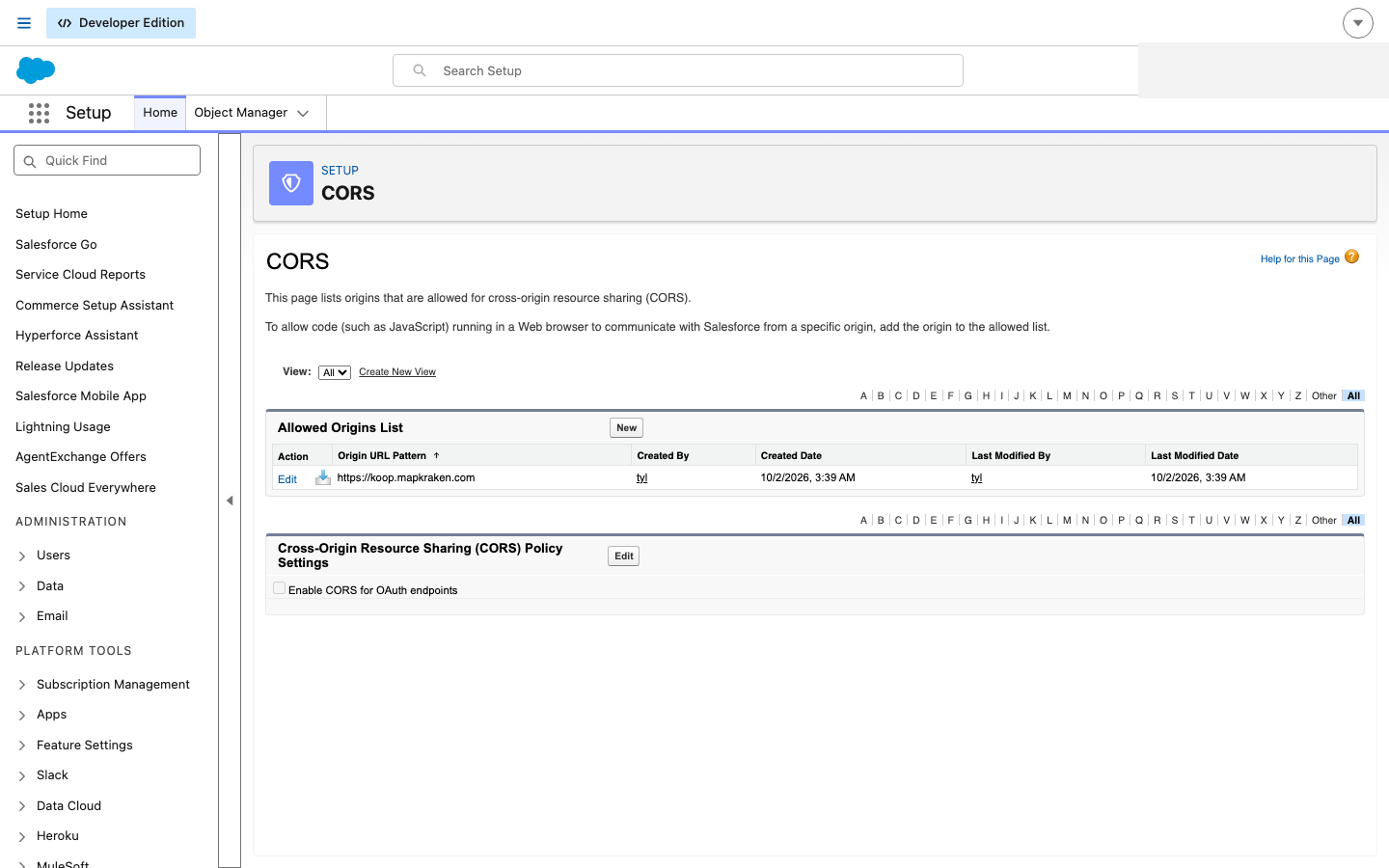
The CORS allowlist. The map runs in an iframe served from another origin, and the browser blocks it silently if that origin is not listed here — the symptom is a blank map with no error.
The map is a web application that talks to your org directly from the browser whenever it saves. If your org has not been told to accept requests from the app's address, the browser blocks them before they are sent, and the failure looks like this:
Error creating territory: Failed to fetch
Nothing is wrong with your data, your credential or your permission sets when you see that — the map will have loaded normally, and reading works. Only saving fails, and it fails for every write: creating a territory, renaming one, editing the model.
Two rules the platform enforces, both of which catch people out:
- The origin must be
https://. Salesforce rejects anhttp://entry outright, with "Invalid protocol in a URL pattern. Origins must use the HTTPS protocol." - The origin is scheme + host + port, with no trailing path.
If you are unsure what to enter, open the map, then open your browser's developer console on a failed save — the blocked origin is named in the error.
6. Define your territory roles
This has its own page: Defining territory roles.
The package ships no roles, deliberately. Until you add some, the role selector has nothing to offer and users cannot be added to territories at all.
Verify the whole chain
Run these in order. Each one separates two different failures, so do not skip ahead — a later check is only meaningful once the earlier one passes.
1. Do records have coordinates?
SELECT BillingGeocodeAccuracy, COUNT(Id) FROM Account GROUP BY BillingGeocodeAccuracyAll null → step 1. Full reading of this result.
2. Did anything get assigned?
SELECT COUNT(Id) FROM ObjectTerritory2AssociationZero, while check 1 shows coordinates → the geocode half is fine and the callout half is not. Go to 3.
3. What does the exception queue say?
Open Assignment Exceptions and look at the categories:
| Mostly | Means | Fix |
|---|---|---|
NOT_CONFIGURED | The credential is unset, or users cannot use it | Steps 2 and 3 |
NO_GEOCODE | Records have no coordinates | Step 1 |
COVERAGE_GAP | Everything is working. Those records are outside every territory | Coverage gaps — a map problem, not a setup problem |
ENDPOINT_UNREACHABLE / TIMEOUT | The credential is set and the service is not answering | Retried automatically. Persisting for hours: contact MapKraken Labs |
| The queue is empty and nothing is assigned | Assignment never started | Re-check 1. If coordinates exist and the queue is genuinely empty, contact MapKraken Labs — that combination should not occur |
After fixing anything: select the affected rows and choose Re-run after a fix. Fixing the cause does not, by itself, retry the records that already failed for it.
What has not been verified
Stated so that nobody reads this page as a tested procedure.
These steps have now been walked, in part, against real managed installs on fresh Developer Edition orgs — and step 2 was corrected as a direct result of doing so. What was verified there is that the records exist, that the Authorization header can be saved, and which record each value actually lives on. The Setup screenshots on this page were captured against one such install on 2026-10-13.
What is still not verified is the whole chain end to end in one pass, by one person, on one fresh org, ending in assigned records. Individual steps have been confirmed; the sequence has not been walked start to finish.
What that means in practice: the set of steps is right — each one is a value the package ships as a placeholder and cannot ship as a value. What is unverified is the exact wording of screens, and whether a genuinely fresh org needs anything not listed here. If you hit a step that is not on this page, tell MapKraken Labs — it is a documentation defect, and this is the page that gets it.
Last verified: 2026-10-13 · Owner: MapKraken Labs LLC
Something on this page wrong, or a setup step missing? That is a documentation defect and we want it — tell us and this is the page that gets fixed.